Interface & Controls
Screen Layout
The tablet display is divided into three functional areas:
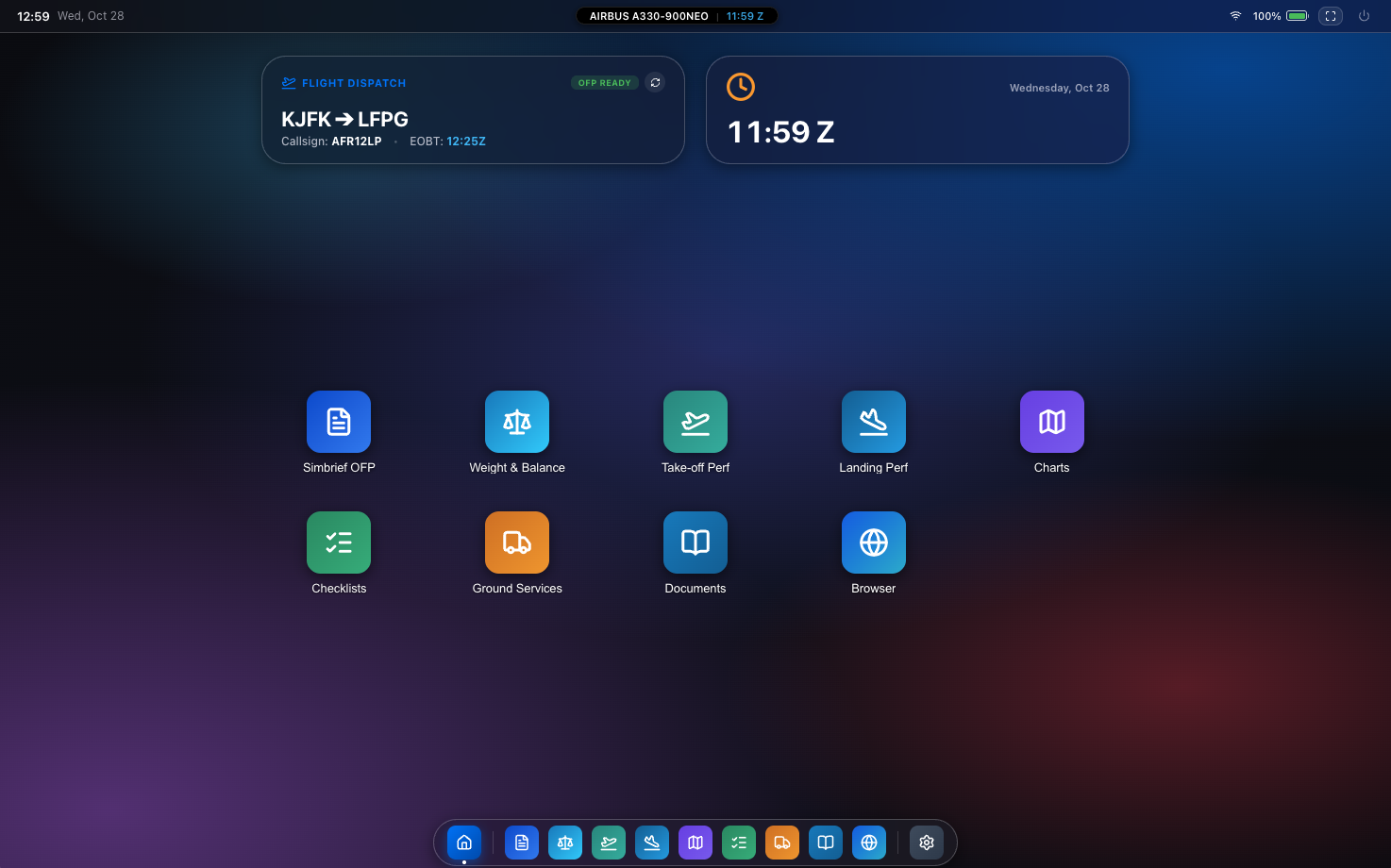
1. Top Status Bar
- Clock Display: Displays current simulation time.
- Aircraft Type: Shows active aircraft variant (e.g., A319, A320neo, A321LR, A330-900, A340-600, DA42, C172).
- Power & Indicators: Visual indicators for battery charge level and network status.
- Minimize Button: Minimizes the 3D cockpit overlay on dual-mode tablet displays.
2. Main Content Area
This central viewport displays whichever application is currently open (e.g., Performance Calculator, SimBrief OFP, Charts, or Checklists).
3. Bottom Navigation Bar
- Home Button (Left): Instantly returns to the application launcher grid from any screen.
- Quick Access Icons (Middle): Allows switching between the main applications without returning to the home screen.
- Settings Button (Right): Opens the system configuration panel.
Responsive Layout & Small Tablet Adaptation
AlphaFloor EFB automatically adapts its interface layout for different screen dimensions: * Standard Tablets & Desktop Monitors: Full multi-column view optimized for standard tablet aspect ratios and floating desktop windows. * Compact / Small Displays: Tailored compact layouts for smaller cockpit tablet mounts, smartphones, or constrained windows, maintaining high legibility and touch target accessibility.
Interaction Methods
In-Cockpit 3D Interaction
- Left Click: Tap any button, tab, input field, or checklist item.
- Double Left Click: Quick zoom in/zoom out on documents and charts.
- Mouse Drag: Hold the left mouse button and drag to scroll through documents, charts and list items.
- Text Input: Click inside an input field (such as an airport ICAO code or gross weight) and type directly on your physical keyboard or use the virtual keyboard.
- 2D Floating Popup Window: Open or close the standalone 2D floating EFB window at any time from Plugins > AlphaFloor EFB > Show EFB Window or by binding a key/button to
AlphaFloorEFB/toggle_window. - Minimizing the 3D EFB Overlay: On aircraft with a dual-mode 3D cockpit tablet, click the Minimize icon in the top status bar to temporarily hide the AlphaFloor EFB 3D overlay and access the underlying cockpit screen. To restore AlphaFloor EFB, tap the AviTab tab on the cockpit tablet screen, execute the
AlphaFloorEFB/toggle_overlaycommand, or toggle Enable EFB Overlay in the Plugins menu.
External Tablet & Mobile Interaction
When viewing the EFB on an iPad, Android tablet, phone, or laptop:
- Tap: Equivalent to a mouse click.
- Touch Drag: Smooth inertial scrolling through checklists, flight logs, and weather reports.
- Pinch to Zoom: Zoom in and out of georeferenced airport diagrams and enroute charts.
- Orientation Support: The interface automatically reorganizes its layout when switching between landscape and portrait orientations.
- Full-Screen / Standalone Mode:
- iPad / iOS: In Safari, tap the Share button and select Add to Home Screen. Launching AlphaFloor from the home screen icon runs it in standalone mode without Safari's address bar or navigation buttons.
- Android / Desktop: Tap the Maximize / Fullscreen button in the top status bar (beside the battery indicator) or select Add to Home screen in your browser menu.