Settings & System Configuration
1. License Management
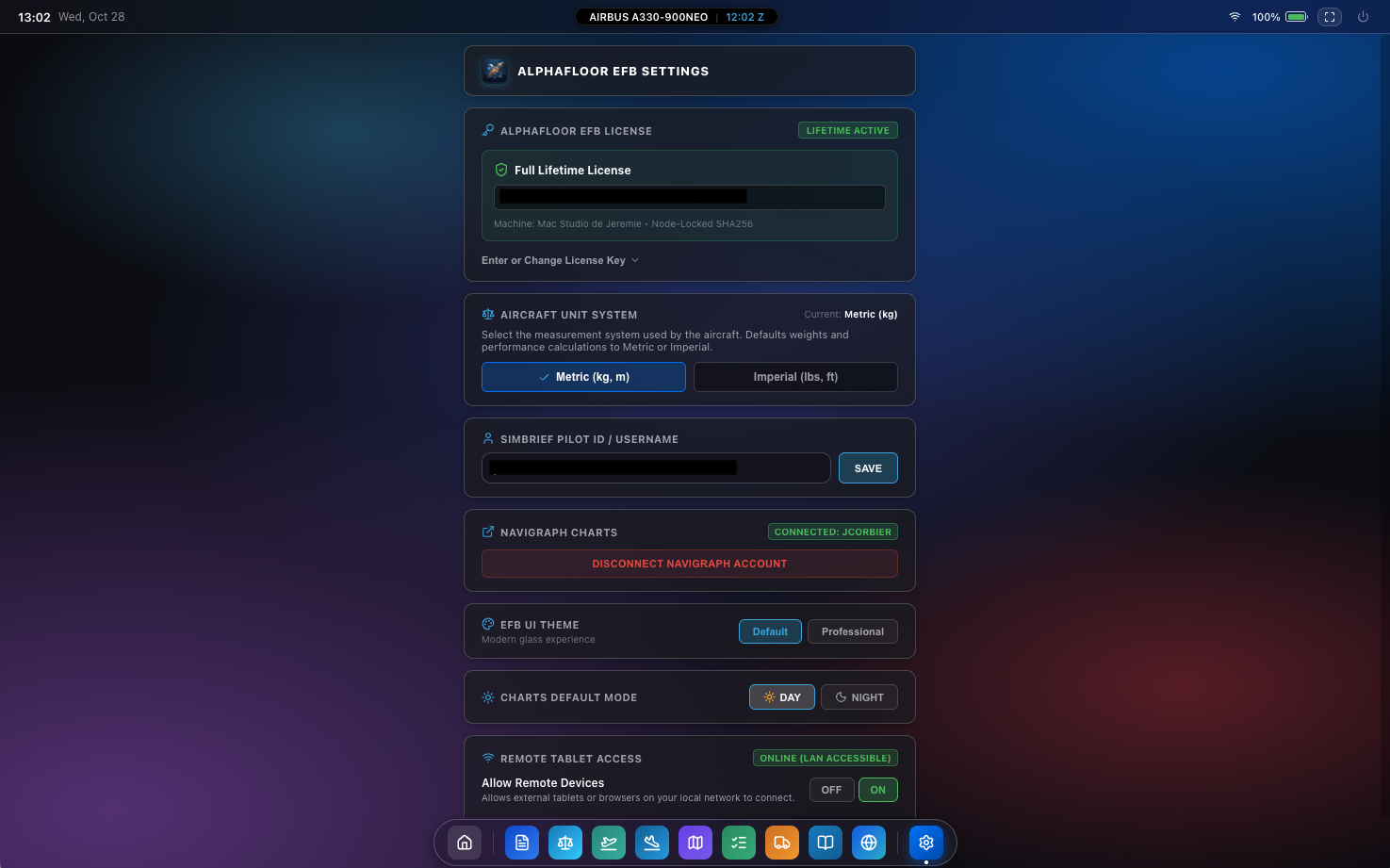
License Status : Displays your current entitlement:Licensed (Full Lifetime Version) Active Free Trial (X days remaining) Activate License : Input your purchased license key (key/XXXX) and click Activate .
2. Aircraft Unit System
Unit System : Select your aircraft's unit system:Metric (kg, m) : Weights in Kilograms (kg) and Tonnes (t), barometric pressure in hPa.Imperial (lbs, ft) : Weights in Pounds (lbs) and 1000 lbs (klbs), barometric pressure in inHg.This setting defines the default unit system used by the Performance and Weight & Balance applications.
3. Account Integrations
SimBrief : Enter and save your SimBrief Pilot ID or username to automatically load dispatch flight plans.Navigraph : View your Navigraph Charts connection status, authenticate, or sign out.
4. Web Browser Settings
Default Search Engine : Choose your preferred search provider for the Web Browser address bar (Google or DuckDuckGo ).
5. Charts Mode
Charts Mode : Toggle between dark and bright chart background.
6. Remote Access (Wi-Fi LAN Streaming)
Server Status : Indicates whether the local network server is active.Local LAN Address : Displays the exact URL to type into your external tablet or phone browser (e.g., http://192.168.1.42:40899).Connection QR Code : Scan the QR code with your mobile camera to open the EFB interface without typing IP addresses.Port Configuration : Change the default listening port (40899) if you have other software utilizing that port.
7. Synchronize EFBs
Synchronize EFBs : Enable or disable synchronization between all connected EFBs.
8. Virtual Keyboard
Virtual Keyboard : Enable or disable the in-cockpit on-screen virtual keyboard when selecting text or numeric inputs. When set to OFF , selecting an input field allows typing exclusively through your physical hardware keyboard without displaying an on-screen keyboard overlay.